Being locked out of your machine before the operating system even loads is a frustrating experience. A BIOS password is a hardware-level lock designed to prevent unauthorized booting or tampering with system controls.
Quick Answer
To recover from a forgotten BIOS or UEFI password: identify the exact device model and password type, then follow that manufacturer’s service manual or verified support process. Laptop recovery often requires ownership verification and service; some desktop models document a password jumper. A firmware password is separate from Windows sign-in and disk encryption, so use BitLocker, Device Encryption, FileVault, LUKS, or another evaluated encryption system to protect stored data.
A bios password is essentially the first line of defense for a computer. When you power on a device, the Basic Input/Output System (BIOS) or Unified Extensible Firmware Interface (UEFI) initializes the hardware. If a password is set, the boot sequence halts until the correct credential is provided.
Important Distinction: There are typically two types of hardware passwords. A Supervisor Password (or Admin Password) prevents changes to the BIOS setup utility. A User Password (or System Password) prevents the computer from booting into the operating system at all.
While this sounds highly secure, you should understand what a BIOS lock actually does. It can restrict startup or firmware-setting changes, depending on the password type. It does not replace storage encryption. Data on an unencrypted removable drive may be readable in another computer; a firmware-managed drive password is a separate case and must be handled through the manufacturer.
Diagnostic: What are you trying to protect or recover?
Select your current situation to see the recommended approach.
You need a Hardware Reset
You may be dealing with a BIOS or UEFI lock. Record the exact prompt and model, then consult the manufacturer or organization administrator. Do not assume a CMOS reset or recovery code applies to your device.
You need Document Security Software
A BIOS password does not control document access after an authorized user signs in. Use operating-system accounts, application permissions, and encryption appropriate to the file and sharing workflow.
Authorized Recovery Methods by Brand
If you are the authorized owner and have forgotten a firmware password, use the device maker’s model-specific instructions. Recovery differs by password type, model, and security configuration.
Method 1: Identify the Device and Password
Record the manufacturer, exact model, serial or service tag, and the wording of the prompt. A setup or administrator password, system or power-on password, and firmware-managed drive password have different consequences. Do not publish a displayed recovery code.
Method 2: Use the Official Manual or Support Route
Look up the service manual from the manufacturer’s support site. Dell states that some desktops support a documented password jumper, while laptops and models without a jumper require Dell Support and proof of ownership. HP states that forgotten BIOS-password handling varies by product, and some business PCs require system-board replacement.
For an employer, school, leased, or second-hand device, contact the organization or seller. Be ready to provide proof of ownership. If the manufacturer cannot support recovery, repair or board replacement may be the only supported route.
Safety note: Do not short motherboard contacts, use password generators, or follow a generic battery-removal procedure. Opening hardware can create electrical, warranty, data-loss, and configuration risks. Follow only the service manual for the exact model.
Reasons Document Password Protection Is Not the Same as a BIOS Lock
Many users set a BIOS password assuming it encrypts their data. Firmware access control and storage encryption are separate layers. A BIOS or UEFI password alone does not address these situations:
You share the computer with a family member or coworker (they need to boot the PC too).
You need to email a secure document to someone else.
A thief removes the hard drive and plugs it into an external enclosure.
The Need for File-Level Security
If you search for "how to lock a document so it cannot be edited or copied" or "how to password protect a document without microsoft office", you are looking for document password security, not a BIOS lock. Securing office files requires software that encrypts the selected data, regardless of where the file travels.
Firmware Access
Data Protection
BIOS/UEFI Password
Storage or File Encryption
Restricts startup or firmware-setting changes, depending on the password type. It does not replace operating-system authentication or storage encryption.
Whole-disk encryption protects a powered-off device; file-level encryption can remain with selected data during storage or transfer when the format and keys are handled correctly.
Open Password vs Permissions Password — Explained
When applying document security, specifically if you want to remove password from pdf or add one, you must understand the two tiers:
Document Open Password: Requires a password simply to view the contents of the file. Without it, the file is scrambled code.
Permissions Password: Allows anyone to open and read the file, but requires a password to print, edit, or copy text. This helps lock document from editing.
Choosing File and Disk Protection
If your goal is to protect your personal data, prevent document copying, or password protect multiple files at once, native OS functions often fall short. For instance, relying on basic hidden folders in an operating system is easily bypassed, and a chrome browser doesn't have any function to password protect profiles natively to keep your local downloads safe.
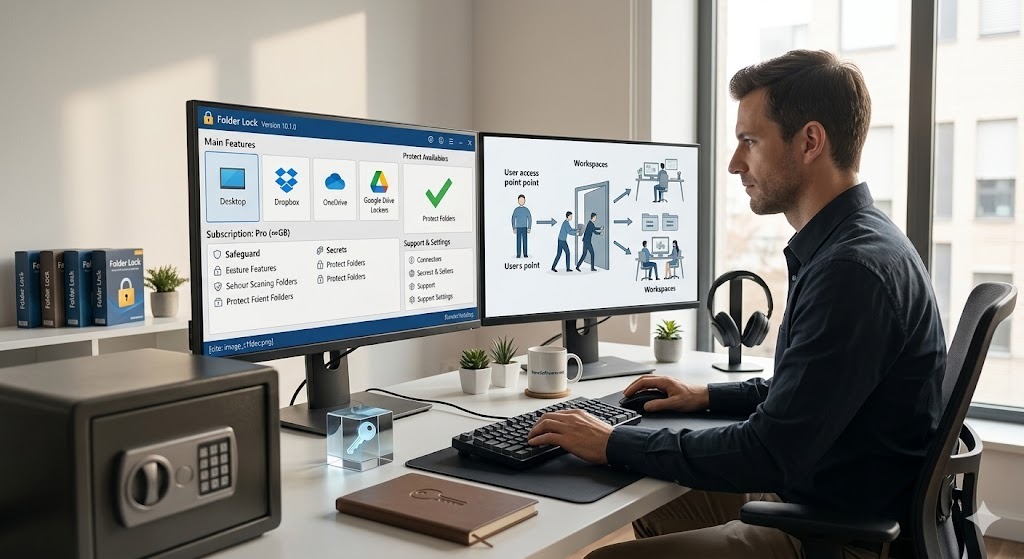
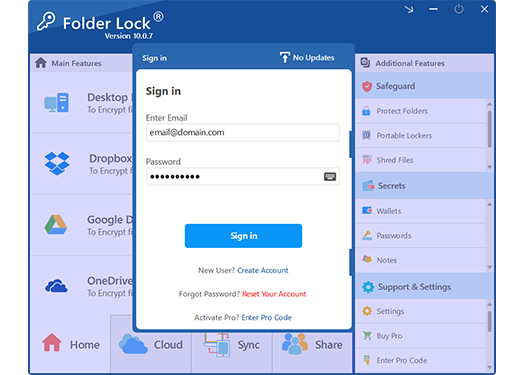
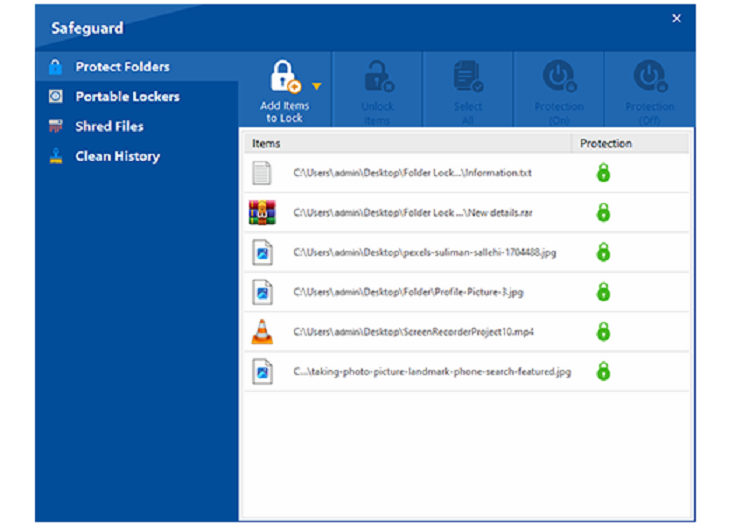
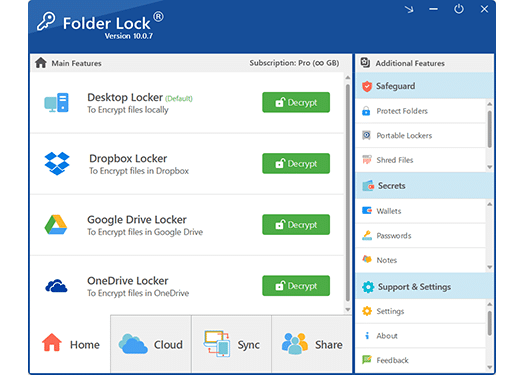
For stored data, start with the platform’s supported whole-disk encryption and a tested recovery key. For selected files, compare maintained encrypted archives, containers, and vault products. Folder Lock is one commercial option; verify its current features, platforms, recovery, and export behavior before use.
Do not choose by an AES label alone. Password strength, key derivation, authenticated encryption, implementation, updates, unlocked endpoints, readable copies, and recovery-key handling all affect security.
Core Encryption & Connectivity
Dynamic Encrypted Vaults: Create virtual drives that automatically expand as you add more data. Your files are encrypted instantly as you drag and drop them, requiring no complex configurations.
Cloud workflow: Confirm whether a tool supports files inside your sync folder, when plaintext exists, and how restore and conflict copies behave. Client-side encryption can reduce some provider risks but cannot protect an already unlocked or compromised endpoint.
Multi-device access: Verify exact operating-system and format support, then test opening, editing, exporting, backing up, and recovering noncritical data on every intended device.
Beyond Standard Files: Total Digital Privacy
Hiding versus encryption: Hidden folders and access controls can reduce casual exposure but are not substitutes for encryption against offline disk access.
Digital Secrets Manager: Your privacy extends beyond documents. Folder Lock includes dedicated secure modules to organize sensitive text. Generate protected wallets for your banking and credit card details, store your login credentials safely, and write private journal entries that no one else can access.
Deletion and sanitation: File overwriting is not a universal erasure guarantee on SSDs, flash media, snapshots, backups, or cloud versions. Use the device or service vendor’s supported sanitization and retention controls.
Secure sharing: Use a maintained encrypted format that every recipient supports. Test it first and exchange secrets through a separate channel; self-extracting executables may be blocked or incompatible.
How to evaluate trust: Review current vendor documentation, update history, independent assessments, key management, recovery, export, support lifecycle, and fit for your threat model.
Choosing the Right Tier
Licensing, limits, platform support, and included features can change. Check the vendor's current product and license pages, then test the required workflow with noncritical data before purchase.
Trial or Free Edition:
Confirm current storage and feature limits
Test backup, restore, and export
Verify each required operating system
Use noncritical sample data first
Paid Edition:
Check current license duration and price
Confirm device and storage limits
Review recovery and sharing controls
Confirm update and support entitlement
What Our Security Analysts Say
Why is a BIOS password insufficient for modern data protection?
A firmware password controls startup or setup access, while storage encryption protects data at rest. Many systems benefit from both, together with account security and tested recovery.
— Senior data protection Editor
Is it safe to use online PDF unlockers or web-based encryption?
Do not upload sensitive documents to an unknown password-removal site. Use a trusted local application or an approved service whose privacy, retention, and security terms meet your needs.
It is a low-level hardware lock that prevents the computer's firmware from fully initializing the boot sequence or prevents users from changing core system controls without a password.
Q2. How does a bios password work?
It is stored in the CMOS memory on the motherboard. When powered on, the motherboard checks this memory. If a flag is set, it prompts the screen for a password before it will look for an operating system on your hard drive.
Q3. What is the best method to remove a bios password on a laptop?
The safest approach is to generate an error code by failing the login three times, then providing that code to the manufacturer's official support channel to prove ownership and receive an unlock key.
Q4. Can a password-protected document be hacked?
A protected document can still be exposed through weak passwords, obsolete formats, flawed software, unlocked endpoints, readable temporary copies, or leaked recovery material. Use a maintained authenticated-encryption format and a strong unique passphrase.
Q5. Does Folder Lock work with cloud storage like Google Drive or Dropbox?
Some tools support encrypted containers or files in cloud-synced folders. Verify the current documentation and test sync conflicts, restore, plaintext handling, and recovery; no configuration ensures data is never exposed.
Q6. Can I access my encrypted files on my smartphone?
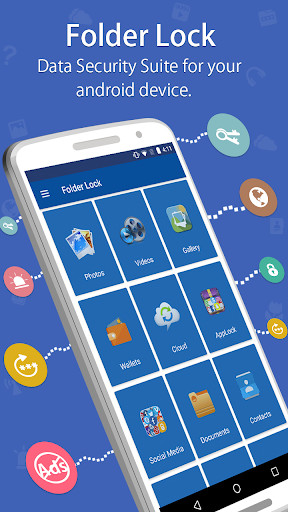
Mobile access depends on the chosen product and file format. Confirm current iOS and Android support and test recovery before moving the only copy of important data.
Q7. How do I protect a document without the recipient needing software?
Choose an encrypted archive or container supported on the recipient’s operating system. Avoid assuming an executable attachment will be accepted or run safely.
Q8. Can Google open a password-protected Office file?
Generally, no. If you upload a password-secured Excel file, you will receive an error stating: "couldn't be opened for import. if the file is password-secured, try removing the password." You must remove the password locally in Excel before uploading to Google Sheets.
Q9. How to reset a folder lock password?
Use the vendor’s supported recovery process for your own data. If all valid credentials and recovery material are lost, recovery may be impossible; keep a tested backup and recovery record separate from the device.
Ready to Truly Secure Your Data?
A firmware password and storage encryption address different risks. Configure both through supported tools, preserve recovery material, and test restore before relying on them.